✅ Step 1 — Choose Your Dungeon
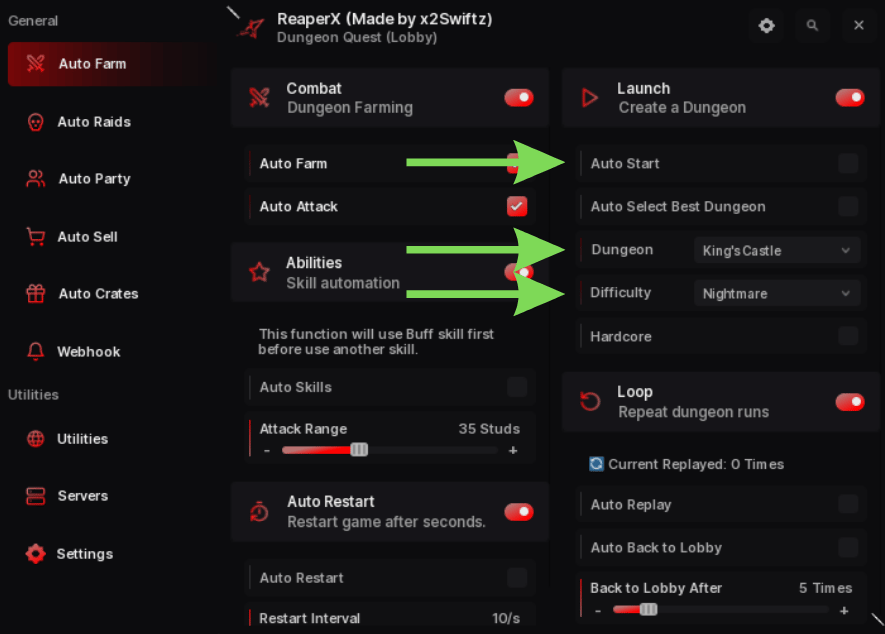
Create a Dungeon to farm by choosing the Dungeon and Difficulty you can handle If you can’t finish it before time runs out, I recommend farming the previous Dungeon first to level upNorthern Lands not supported with Hardcore Mode
⚔️ Step 2 — Auto Farm
Go to theAuto Farm tab and enable:
-
Auto Farm -
Auto Attack -
Auto Skills
🤔 What is Attack Range
It’s basically the range for using skills. Once enemies are within that range, it’ll automatically cast the skill. And of course, it supports both Warrior and Mage classes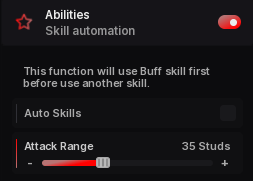
Attack Range isn’t supported in Northern Lands
If it’s Normal Mobs in Northern Lands, you can adjust the Attack Range and it’ll work normallyHowever, for Bosses, the Attack Range you set won’t apply. So even if you change the Attack Range, it won’t affect how the script attacks bosses
If it’s Normal Mobs in Northern Lands, you can adjust the Attack Range and it’ll work normally
If it’s Normal Mobs in Northern Lands, you can adjust the Attack Range and it’ll work normallyHowever, for Bosses, the Attack Range you set won’t apply. So even if you change the Attack Range, it won’t affect how the script attacks bosses
If it’s Normal Mobs in Northern Lands, you can adjust the Attack Range and it’ll work normally
🔄 Step 3 — Auto Replay
To make sure it keeps farming, don’t forget to turn on Auto Replay so it will repeat the Dungeon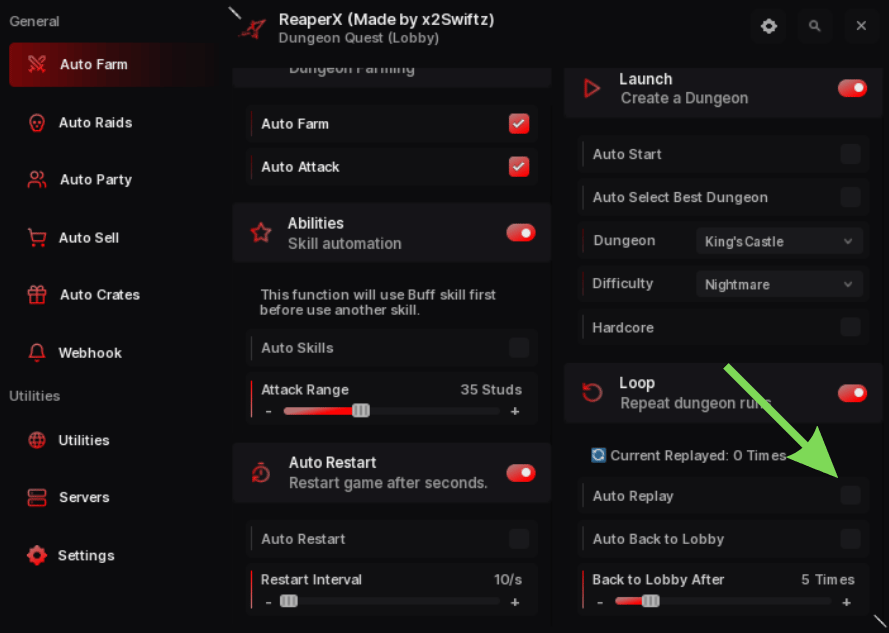
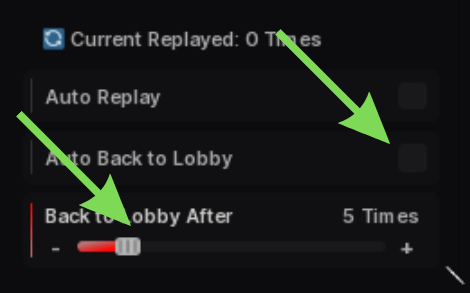
🕝 What is Auto Restart
It’s useful for people who can’t beat the Dungeon they’re farming and don’t wanna waste too much time For example, if you can’t kill the final boss and don’t wanna sit there waiting for the whole run to end, you can set a timer to Auto Restart and start the run again automatically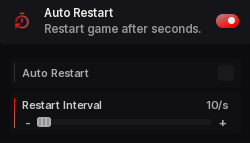
⚡ Step 4 — Recommended Settings
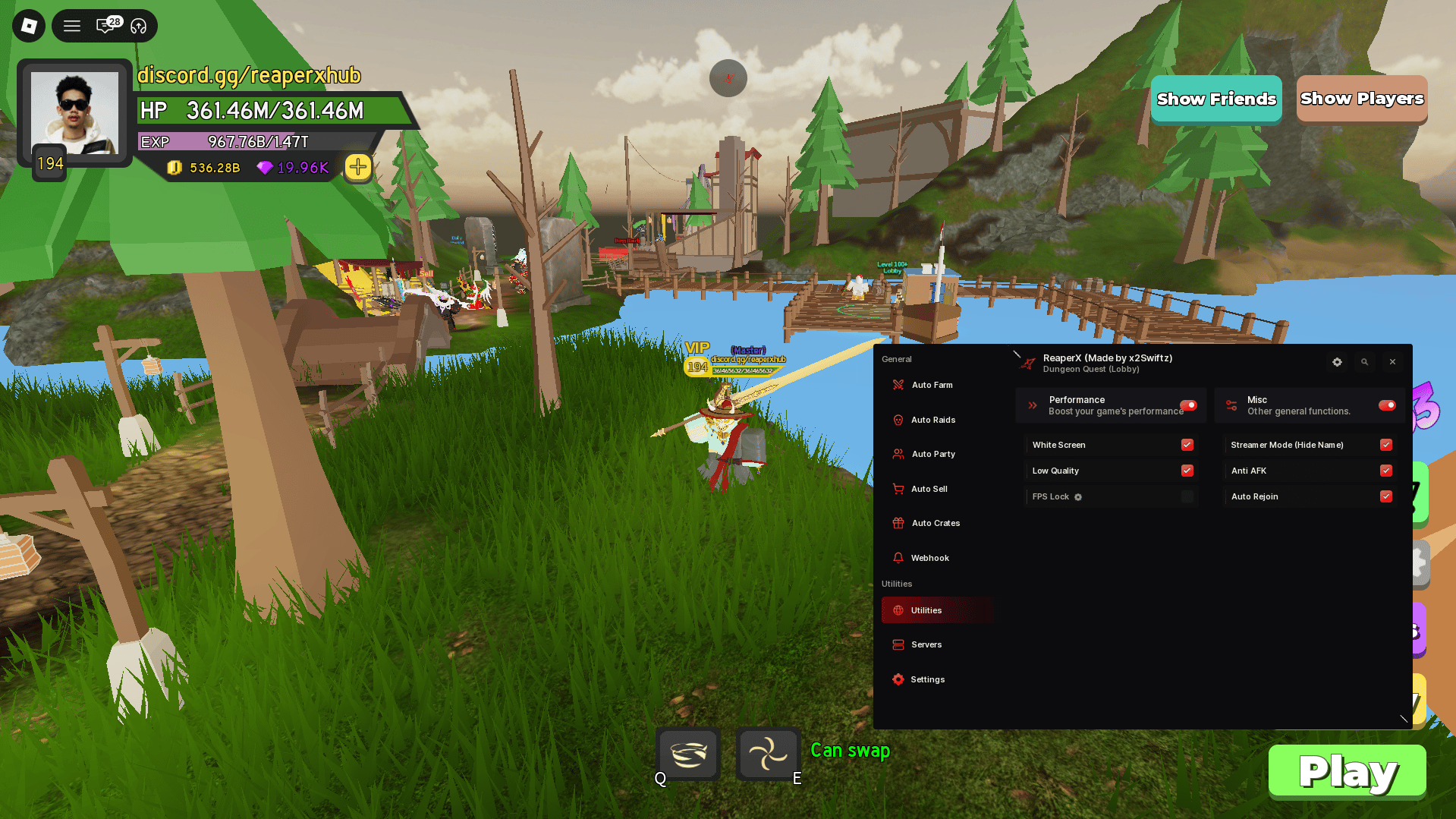
For anyone who wants to let the script farm while doing other things, we recommend turning on Whitescreen to reduce CPU usage. It works automatically when you minimize Roblox. To reduce CPU usage even more, we also recommend keeping Low Quality enabled. For FPS Cap, we recommend setting it between 30–60 FPS for better performance and stability while Auto Farm is running. With these settings, you can leave Auto Farm running for 24 hours while you sleep or do other things without having to worry about it Example of Low Quality settings shown below